7 Email Automation Flows For Trailer Rentals
August 16, 2026 · 14 min read
7 Email Automation Flows For Trailer Rentals
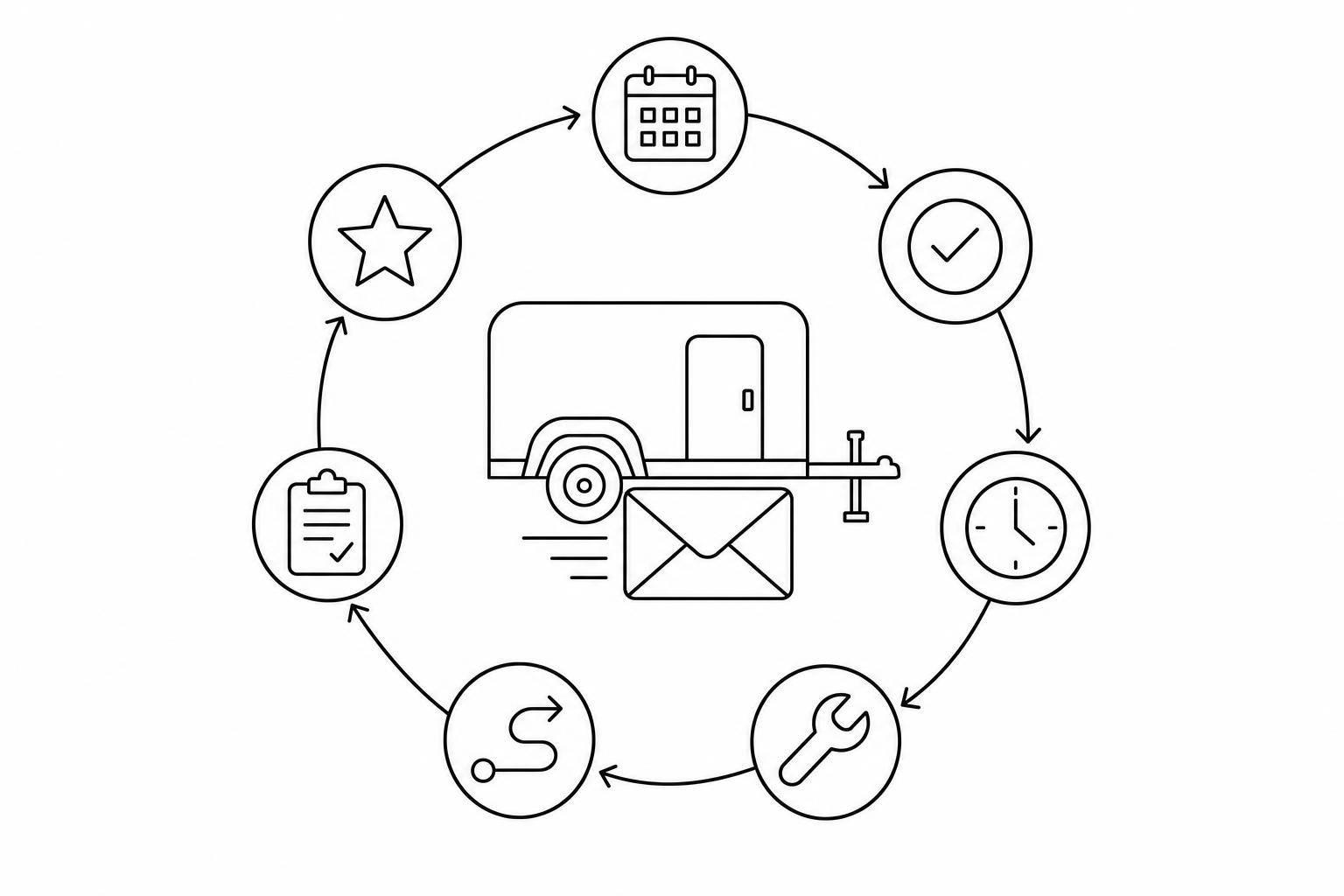
If you run self-serve trailer rentals, these 7 email flows do most of the follow-up for you. They cover the full rental cycle: booking confirmation, ID reminder, pickup instructions, late return alert, extension offer, damage follow-up, and review request.
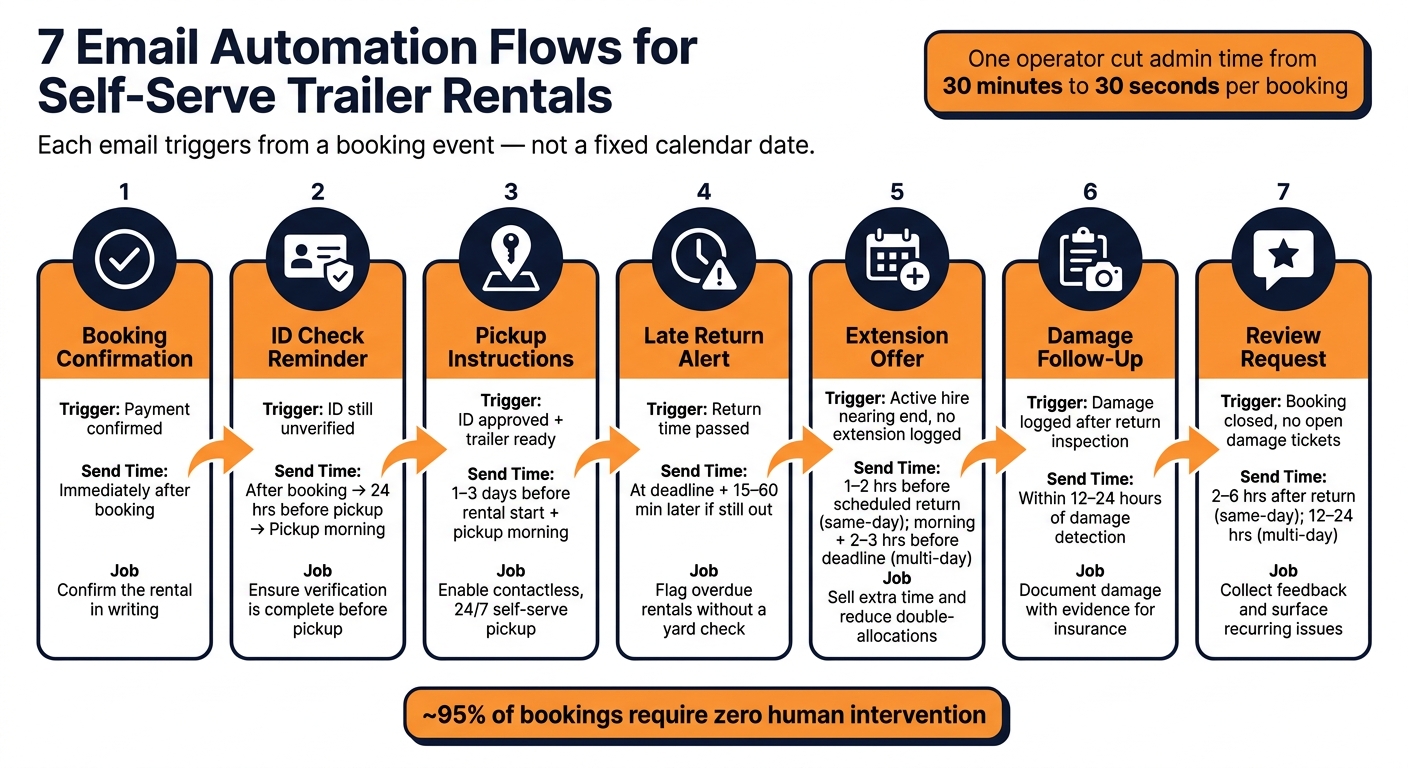
I’d set them up around _booking events_, not fixed dates. That means each email goes out when something happens: payment clears, ID is still missing, pickup is near, return is late, damage is logged, or the booking is closed. That’s how one operator cut admin time from 30 minutes to 30 seconds per booking.
Here’s the short version of what each flow does:
- Booking confirmation: confirms the order at once
- ID reminder: nudges renters to finish verification before pickup
- Pickup instructions: sends location, lock code, and tow details
- Late return alert: warns renters once the return time passes
- Extension offer: lets them add time and pay online
- Damage follow-up: documents issues after return
- Review request: asks for feedback after the booking is done
A good setup also helps stop common problems before they turn into support work:
- missed pickups
- incomplete ID checks
- wrong hitch or tow setup
- overdue returns
- unpaid extra time
- damage disputes
- missed review requests
Quick Comparison
| Flow | Trigger | Best send time | Main job |
|---|---|---|---|
| Booking confirmation | Payment confirmed | Right away | Confirm the rental |
| ID reminder | ID not finished | After booking, 24 hours before pickup, pickup morning | Get verification done |
| Pickup instructions | ID approved and unit ready | 1–3 days before pickup, then pickup day | Guide self-serve pickup |
| Late return alert | Return time passed | At deadline or after grace period | Flag overdue rentals |
| Extension offer | Rental close to end | 1–2 hours before return, or last-day reminders | Sell extra time |
| Damage follow-up | Damage logged after return | Within 24 hours | Record and explain charges |
| Review request | Booking closed, no open issues | 2–24 hours after return | Get feedback |
In short: if you want trailer rentals to keep moving after hours, these are the emails I’d automate first.
1. Booking Confirmation Email
Trigger and Timing
Send this email right after the payment or deposit clears. The goal is simple: the customer should get instant confirmation, not sit around wondering if the booking went through. [1]
Required Details to Include
This email needs to cover the basics without making the customer dig for answers. Include the booking reference number, trailer type, pickup and return dates and times, pickup location, total price, and a short summary of the rental terms. It should also spell out what happens next and give the customer a clear way to get help or manage the booking. If there are towing or hookup rules, put them in here too. [1]
"Your 6x12 enclosed trailer is booked for Friday, August 22 at 8:00 AM. Pickup instructions will send after ID verification is complete. Please bring a valid driver's license." [1]
24/7 Self-Hire Benefit
This email is the handoff into the rest of the self-hire flow. It ties into ID checks, lock codes, and customer portal access so pickup can move ahead without staff involvement.
That matters because the customer can keep moving through the process on their own time. Once this email lands, the next step is ID verification and pickup prep. If ID verification still isn't done, the next email should prompt the customer before pickup.
2. ID Check Reminder Email
After the booking is confirmed, the ID check is the next step before pickup.
Trigger Event
This email sends automatically when a customer has a confirmed booking but hasn't finished identity verification. The reminder sequence starts on its own, so the booking keeps moving toward pickup.
Best Send Timing
This timing should follow the pickup schedule, not just the booking date. Send the first reminder right after booking, another 24 hours before pickup, and one more on the morning of pickup. For same-day or next-day bookings, send one final reminder 1–2 hours before pickup.
Required Details to Include
Keep the email short and action-focused. Include:
- The customer's name
- Booking reference
- Trailer type
- Pickup date and time
- A direct verification link
- A short note on the ID required
Ask for a current, government-issued driver's license. The process should be mobile-friendly so customers can finish it on their phone without any friction.
You should also explain why the check matters. It helps prevent unauthorized use and meets insurance requirements. It also confirms the renter before access is issued. If verification fails, include a support contact so the customer knows what to do next.
Once the check is done, the next automated email can send pickup instructions and access details.
24/7 Self-Hire Benefit
Automated reminders stop ID checks from turning into a manual bottleneck and help keep pickup available 24/7. In a self-hire setup, no verified ID means no access. That's what keeps the handoff secure and staff-free, while keeping the rental moving to the pickup step.
3. Pickup Instructions Email
Trigger Event
Once the ID check is approved, this email becomes the last handoff before pickup. Send it when the booking is confirmed, the ID is approved, the trailer is assigned, and the access code has been generated. In Lockii, this trigger is tied to the booking status, so the message goes out as soon as the order is ready for pickup [1][2].
Best Send Timing
Use a two-step send.
- Send the first message 1–3 days before the rental starts. Include the date and time, parking instructions, and hitch requirements.
- Send the second message on the morning of pickup, or shortly before the scheduled window. Include the access code, step-by-step pickup instructions, and a link to the customer portal [2].
Required Details to Include
At minimum, include:
- Customer name and booking reference
- Trailer type and assigned unit, such as the lot location or bay number
- Confirmed pickup date and time written out clearly, for example, "Saturday, August 22, 2026 at 9:00 AM"
- Pickup location: full street address, parking instructions, and a map link or photo that shows the exact trailer position
- Access code and customer portal link, along with step-by-step instructions for unlocking the smart lock and reviewing order details at any time
- Tow requirements and what to bring: ball size, hitch type, towing limits, brake controller notes, driver's license, and any other required items
Trailer rentals depend on vehicle fit. If a customer shows up with the wrong hitch setup, or with a vehicle that can't handle the tow weight, pickup can fail. That’s why this email needs to spell things out in plain English. A small detail here can save a wasted trip later.
24/7 Self-Hire Benefit
This email is what makes staff-free, after-hours pickup work. It gives renters the details they need to collect the trailer on their own, without waiting for a team member. In fully automated systems, approximately 95% of bookings never require human intervention [2].
After pickup, automation should shift to return tracking and late-return alerts.
4. Late Return Alert Email
Trigger Event
After pickup, this flow starts when the trailer still hasn't been returned by the scheduled return time. In a self-hire setup, that return check can come from GPS data, the customer's return form, or hire-end photos uploaded through the portal. If none of those signals come through, the booking is marked overdue automatically.
No manual yard check is needed.
Best Send Timing
Send the first alert as soon as the return deadline passes. If your policy includes a grace period, send it after 15 to 60 minutes. If the trailer is still out later that same day, send a follow-up email with firmer wording and updated fee details.
Required Details to Include
This email should be direct and easy to act on. Include the customer's name, booking reference, trailer type, trailer unit number, the original return date and time, and a clear note that the booking is now overdue.
Be plain about late fees. Spell out how the charges work, whether they build hourly or daily, and what the customer needs to do to stop them. No one wants to dig through fine print when the clock is ticking.
Two action paths matter most:
- Add a self-service extension link so the renter can pay for extra time without calling.
- Include clear return steps that explain where to park and lock the trailer, plus how to complete the return form.
24/7 Self-Hire Benefit
For unmanned sites, this email works like a digital yard manager. Lockii monitors customer bookings and notifies you when things go wrong, when bookings are overdue or when customers forget to fill out forms. [2]
That keeps overdue rentals visible and easy to act on after hours. If the renter needs more time, the next flow should offer a self-service extension before fees keep building.
5. Extension Offer Email
Trigger Event
After the late return alert, this flow gives the renter one last chance to extend the booking before it becomes overdue. Send it when the rental is close to ending and there’s still no return confirmation on file.
If you use GPS tracking, you can pair time-based rules with booking status checks so the trigger runs on its own. No one has to sit there watching the calendar. The booking keeps moving, and the customer gets a clear next step without waiting for a phone call.
Best Send Timing
Timing matters here.
For same-day or short hires that last 4–8 hours, send the extension offer about 2 hours before the scheduled end time.
For overnight or multi-day rentals, send:
- one email on the morning of the last day
- a follow-up 2–3 hours before the return deadline
That two-email setup gives customers time to make a decision without feeling rushed. [1]
Required Details to Include
Keep the email short and action-first.
Start with a direct "Extend My Rental" button that takes the customer straight to the portal. The added cost should already be calculated there, and payment should be handled online.
Include:
- the customer’s name
- trailer type
- booking reference
- the current return deadline such as "Aug 16, 2026, 4:00 PM"
Then show the extension choices in plain English. Spell out how many extra hours or days are available, and list the exact cost for each option in U.S. dollars, such as "$35.00 per additional day, plus applicable taxes".
Be just as clear about late fees. Say when they begin and how you calculate them. Lockii automatically updates the lock code after the extension is confirmed and paid, so the code stays active for the extra time. [1]
24/7 Self-Hire Benefit
This is the flow that makes after-hours rentals easier to run at scale.
Instead of forcing a customer to call and hope someone answers, you send a prompt email with everything they need to handle the extension on their own. No manual override. No back-and-forth. Just self-service access that works when staff are offline.
The payoff is pretty simple: fewer late returns, fewer support calls, and no staff time spent processing the extension. Once the extension window closes, the next flow checks the trailer back in and flags any damage.
6. Damage Follow-Up Email
Trigger Event
After the trailer comes back, the next automated step is a damage follow-up if anything looks off.
This flow starts when a completed rental is marked for new damage. In a contactless self-service rental setup, that usually happens when a customer uploads end-of-hire return photos, finishes an end-of-hire quiz, or a staff member opens a damage or issue ticket after checking the return record.
Use the item audit log as the basis for the follow-up, since it gives you timestamped evidence.
Best Send Timing
Send the first email within 24 hours of return.
If the damage is minor, wait until your team finishes its review before you send the detailed charge email. If the damage is serious or safety-related, send the first email as soon as the inspection is done and the basic facts are confirmed.
Required Details to Include
Open with: _"During our standard post-rental inspection, we found damage not present at pickup."_
Then include:
- Booking reference, trailer ID, and rental dates
- A clear description of the damage, along with before-and-after photos
- A link to the booking portal with timestamped photos, GPS logs, and the audit trail
- Separate parts, labor, and admin fees in U.S. dollar amounts, plus a brief quote from any relevant damage clause
Close with a 5-business-day response window and a contact method for disputes.
If the record is clear, the final step is a review request.
24/7 Self-Hire Benefit
With an automated trailer rental business model, return photos, checklists, and audit data are logged automatically. That means the damage record is ready as soon as the end-of-hire process is done.
Clear evidence helps keep disputes short and moves the rental toward the final review email.
Once the damage record is sent, the last flow asks for a review.
7. Review Request Email
Trigger Event
Once damage handling is done, send the review request right away. But only after the booking is marked Completed or closed, the trailer has been checked back in, and there are no open damage or issue tickets.
If you use a Lockii workflow, tie the trigger to return confirmation from photos, quizzes, or GPS/lock status. In plain terms, use actual return signals to fire the email, not the scheduled end time.
Best Send Timing
Timing matters here. For same-day or 24-hour rentals, send the email 2–6 hours after the return is confirmed. For multi-day or weekend rentals, wait 12–24 hours.
Send the message between 9:00 AM and 7:00 PM local time. Then send one reminder 3–5 days later. That timing makes the request feel prompt, not like automated spam.
Required Details to Include
Keep the email short. Give the customer one clear action: leave a review.
Include:
- The customer's first name
- The trailer type and size
- The pickup location
- The rental date in U.S. format, such as August 14, 2026
- One button, such as Leave a Review, linked to your review page
A short explanation can help with response rates: _Your review helps other renters choose the right trailer and helps improve future rentals._
Also add a private feedback line such as _If something went wrong, reply here instead of posting publicly._ That gives unhappy customers a direct way to reach you before they post a public review.
24/7 Self-Hire Benefit
In a contactless setup, this email becomes the post-rental touchpoint. It helps you see whether the pickup instructions, the best smart locks, and the find my order page all worked the way they should.
For Lockii users, the whole flow can run on autopilot from hire-end photos, quiz completion, and return confirmation. So if a return is logged at midnight, the right follow-up still goes out without staff help. You can also route low ratings into issue tracking to catch problems with lock codes, lighting, or return steps.
All 7 Email Flows at a Glance
Here’s the quick-reference version of all seven flows, along with what sets them off, when to send them, and what they help you handle day to day. All times use the customer’s local time zone.
| Email Flow | Trigger | Ideal Send Timing | Operational Benefit |
|---|---|---|---|
| 1. Booking Confirmation | Payment confirmed | Immediately after booking | Fewer booking calls; dates, times, and location confirmed in writing |
| 2. ID Check Reminder | ID still unverified | Immediately after booking; again 24 hours before pickup; again on pickup morning if still incomplete | No unverified customers arriving at pickup |
| 3. Pickup Instructions | ID approved; pickup time approaching | 1–3 days before rental start; again on pickup morning or just before the window | Contactless, 24/7 pickup without staff explanation |
| 4. Late Return Alert | Return overdue | At the deadline; again 15–60 minutes later if still out | Late returns flagged and actioned without a yard check |
| 5. Extension Offer | Active hire nearing end time; no extension logged | 1–2 hours before scheduled return | More paid extensions; fewer double-allocations |
| 6. Damage Follow-Up | Damage logged after return inspection | Within 12–24 hours of damage detection | Standardized damage handling; documented for insurance |
| 7. Review Request | Booking completed; no open damage tickets | 12–24 hours after return | More reviews; recurring issues surfaced early |
Now that the seven triggers are mapped, the next move is tying them to your booking, ID, return, and damage events. This is a key step in automating rental business operations to maximize efficiency.
How to Put These Flows to Work in a Self-Hire Trailer Business
These flows work only when they start from booking events, not from a fixed calendar. Each email has to match the right rental event. That’s what turns an email into part of a live workflow instead of just another scheduled blast.
In day-to-day use, each flow should line up with a single status change, such as:
- payment confirmed
- ID still incomplete
- pickup window approaching
- return overdue
- extension needed
- damage logged
- booking closed
If you send these by hand, the admin work comes right back—negating the benefits of automated trailer hire. And that’s the very thing you’re trying to get rid of.
For trailer businesses that run 24/7 self-hire, Lockii connects booking, ID verification, email and SMS automation, smart locks, extensions, and damage tracking in one workflow. Once those triggers are connected, the system runs the rental flow for you.
Conclusion
These seven flows handle each part of a trailer rental, from payment to post-hire. Every customer touchpoint is covered automatically, so rentals keep moving without manual follow-up.
And the upside isn't limited to a single booking. The same setup works whether you're running one yard or several. That's what makes contactless trailer hire possible at scale.
If you're serious about running self-hire trailers at scale, email automation isn't just a nice extra. It's a core system. Connect each flow to the right booking trigger, and your rental process can run on autopilot.