Rental Order Update Checklist: SMS and Email
July 3, 2026 · 11 min read
Rental Order Update Checklist: SMS and Email
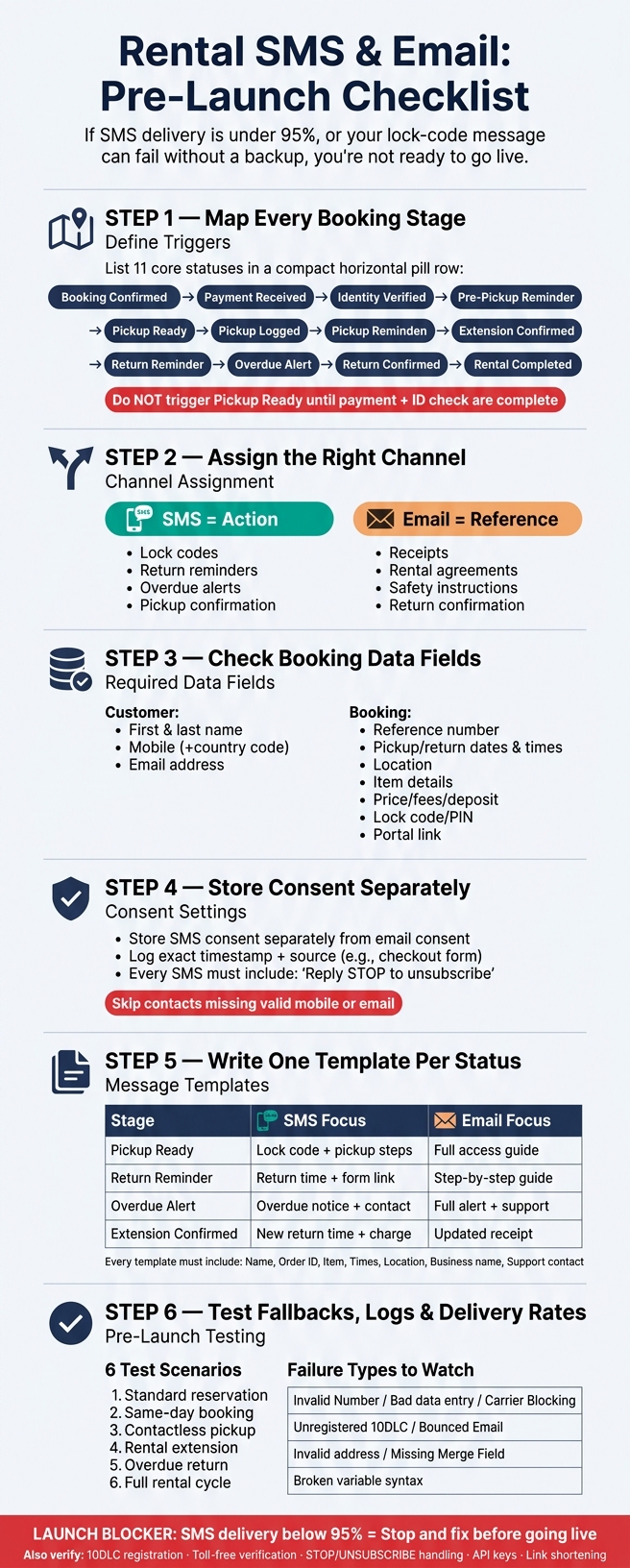
If your SMS delivery is under _95%_, or your lock-code message can fail without a backup, you’re not ready to go live.
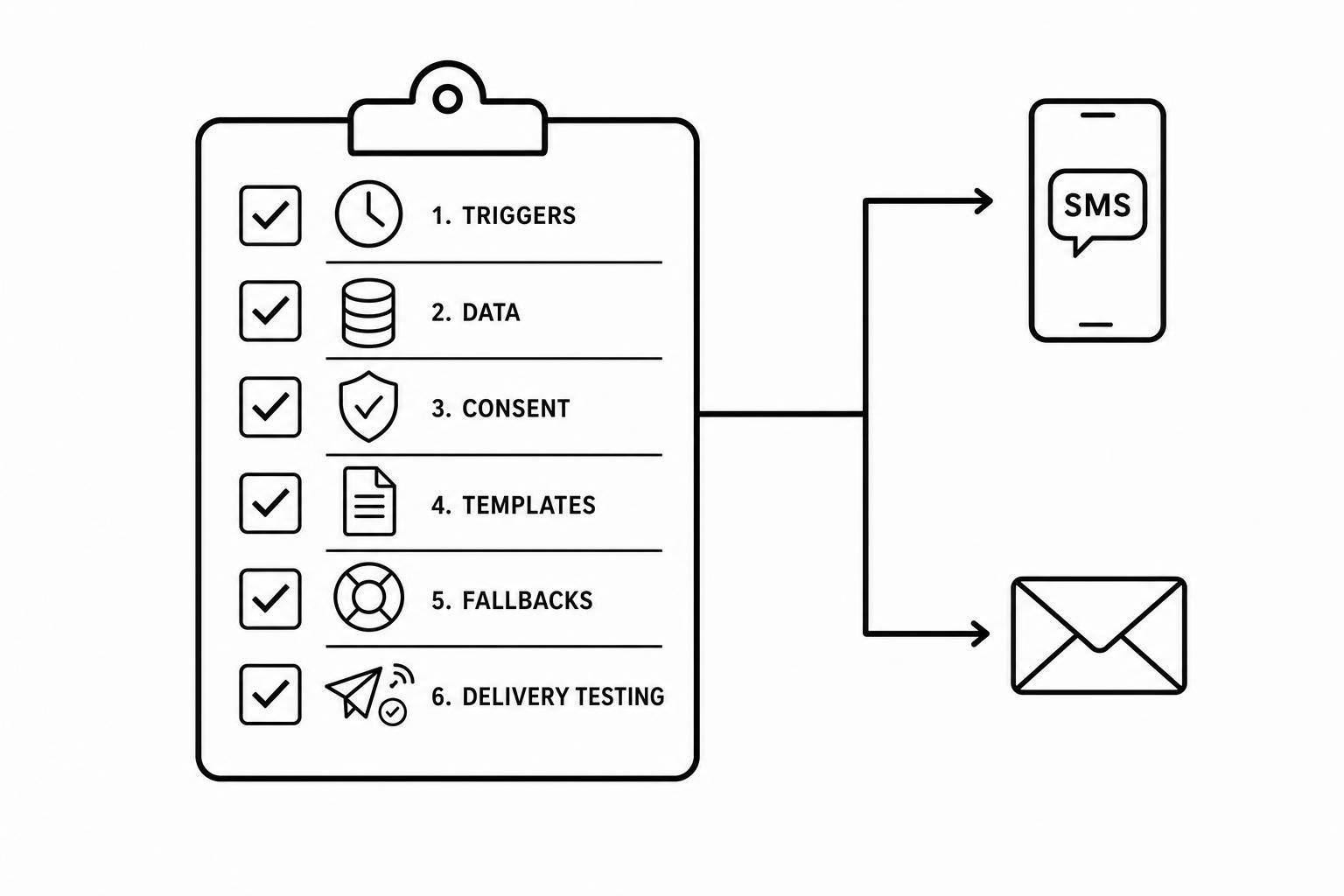
I’d boil this checklist down to six things you need to verify before launch:
- Map every booking stage from confirmation to return complete
- Assign the right channel: SMS for fast action, email for records
- Check booking data fields like phone, email, order ID, times, location, and item details
- Store SMS and email consent separately with timestamp and source
- Write one SMS and one email template per status with all required merge fields
- Test fallback rules, logs, STOP handling, and delivery rates before launch
A few rules stand out. Don’t send Pickup Ready until payment and ID checks are done. Send lock codes at the exact pickup trigger, not later. Add email fallback for failed SMS on pickup, return reminders, and overdue alerts. And for U.S. texting, make sure [10DLC](https://www.10dlc.org/en/TCR) registration, toll-free verification, and STOP/UNSUBSCRIBE handling are set up.
Here’s the short version: I’d treat this as a launch check for triggers, data, consent, templates, fallbacks, and delivery logs. If even one part is off - like a blank merge field, bad number, or blocked carrier route - the customer may miss pickup or return steps.
The rest of the article walks through each check in order so you can fix problems before a live booking hits them.
1. Define booking stages and message triggers
Core order statuses to automate
Map the full rental journey and automate rental business operations before you write a single template. That way, every stage sends one clear update, and the customer never has to guess what’s going on.
The core statuses to cover are Booking Confirmed, Payment Received, Identity Verified, Pre-Pickup Reminder, Pickup Ready, Pickup Logged (when the lock opens or GPS records movement), Extension Confirmed (when the customer pays to extend time), Return Reminder, Overdue Alert, Return Confirmed (after the return form, photos, or return status is submitted), and Rental Completed / After-Rental.
There’s one hard rule here: do not move a booking to Pickup Ready until payment and identity verification are complete.
Once you’ve mapped the stages, pair each one with the fastest channel that still keeps the message clear.
Match each status to SMS, email, or both
Use each channel only when it helps with speed, clarity, or a record the customer may need later.
| Booking Stage | Trigger | Channel | Purpose | | --- | --- | --- | --- | | Booking Confirmed | When booking is created | Email + SMS | Confirmation and next steps | | Payment Received | When payment clears | Email | Receipt and payment record | | Identity Verified | When verification is approved | SMS | Confirmation of verified status | | Pre-Pickup Reminder | 24–48 hours before the rental starts | Email | Prep and ID instructions | | Pickup Ready | At start time or 1 hour before | SMS | Access instructions | | Pickup Logged | When the lock opens or GPS records movement | SMS | Pickup confirmation | | Extension Confirmed | When extension payment clears | Email + SMS | Updated return time and receipt | | Return Reminder | 24 hours before end | SMS | On-time return reminder and late fee warning | | Overdue Alert | Shortly after the scheduled end time | SMS | Late return alert | | Return Confirmed | After return form, photos, or return status is submitted | Email | Thank-you, deposit status, review request | | Rental Completed / After-Rental | After return is confirmed | Email | Closing summary and follow-up |
A simple way to think about it: SMS is for action, and email is for reference.
Use SMS for things the customer needs to act on right away, like lock codes, return reminders, and overdue alerts. Use email for items they may need to check again later, like rental agreements, safety instructions, and receipts.
Flag time-critical rental updates
After you pick the channel, mark the messages that can’t wait.
Pickup access instructions and lock codes need to go out the moment Pickup Ready fires. Even a short delay can leave someone standing at the pickup spot with no way to access the item. Send time-limited lock codes and pickup instructions immediately when Pickup Ready fires.
Treat Overdue Alert the same way. If the return isn’t logged by the scheduled end time, the system should alert both the customer and the operator right away. GPS tracking can make that signal stronger if the item has not returned to the designated location [4][5].
2. Confirm customer data fields and consent settings
Required contact and booking fields
Once your booking stages are mapped, check the fields each automated message will use. If a field is missing or formatted the wrong way, the message may not send at all.
Each booking record should include:
- Customer identity: first and last name
- Contact details: mobile number with country code (for example, +1 555-012-3456), email address
- Booking details: booking reference number, pickup and return dates/times in MM/DD/YYYY, h:mm AM/PM, pickup and return locations, rented item details
- Financial fields: item price, taxes, fees, balance due, and security deposit in U.S. currency (for example, $1,250.00)
Data fields for contactless rental updates
Self-service rentals need a few extra fields. Your records should include a unique, time-limited lock code or PIN, pickup instructions, a customer portal / find-my-order link, and a self-service extension link.
These fields feed straight into messages sent at the Pickup Ready, Pre-Pickup Reminder, and Extension Confirmed stages. That’s the whole point: the system pulls the right detail at the right moment, instead of forcing your team to fill gaps by hand.
Store hire-end photos, forms, and GPS-verified timestamps in the audit log to document item condition and location. If your rentals use GPS tracking, store the pickup and return locations so the system can log them and trigger alerts for potential theft or missing items [4].
SMS and email consent settings to configure
Keep separate consent flags for SMS and email. If someone agrees to booking confirmation emails, that does not mean they’ve agreed to text messages too.
For each consent record, store the exact timestamp and the source such as the checkout form or booking widget. Every automated SMS must include a clear opt-out instruction such as Reply STOP to unsubscribe [2].
Your automation should also skip any contact missing a valid mobile number or email address. It sounds simple, but this one rule can save you from failed sends and messy follow-up.
With the fields and consent settings in place, you can build templates around the data each booking status needs.
3. Build message templates and fallback rules
Write templates for each order update stage
Once you've locked in the stages, fields, and consent settings, it's time to write the messages. Create one SMS and one email template for each rental status you automated earlier.
For contactless rentals, the pickup message needs the most detail. That's the message that sends the time-limited lock code, item identifier, and pickup steps. If that message fails or leaves room for doubt, the customer can't complete pickup.
Include the minimum required fields in every message
Every template, no matter the channel, should include the customer's first name, order ID, item name or identifier, pickup time, return time, location, business name, and a support contact or link [2][4].
For SMS, add opt-out language such as "Reply STOP to opt out". Also, keep payment details and security codes out of SMS. Send those through a secure link instead [2][3].
| Stage | SMS Focus | Email Focus | | --- | --- | --- | | Pickup Ready | Lock code, item ID, pickup instructions | Full access guide, support contact | | Extension Confirmed | New return time + amount charged | Updated receipt, new return instructions | | Return Reminder | Return time + link to return form | Step-by-step return guide, photo upload link | | Overdue Alert | Overdue notice + contact link | Full alert with support details |
Set fallback and escalation rules
After the templates are ready, map out what happens when a message doesn't get through. The two main trouble spots are bad contact data and carrier blocks [2].
For time-sensitive updates like lock codes, overdue alerts, and return reminders, set an automatic email fallback if the SMS doesn't deliver [2][3]. Lockii's SMS and email automation can help you build that fallback flow.
You should also set a staff alert after repeated failures on critical messages [4]. That gives your team a chance to step in before pickup is missed or an overdue rental turns into a bigger mess.
Set up HELP and STATUS replies to auto-respond or route to staff [3]. And send all replies into a shared inbox so someone can handle manual follow-up when needed [3].
4. Check failed delivery handling and test before launch
Monitor delivery status and common errors
With templates and fallback rules set up, check delivery behavior _before_ launch. This matters most for time-sensitive contactless updates like Pickup Ready, Return Reminder, and Overdue Alert.
Open your SMS provider's dashboard and make sure you can see these three status types:
- Sent
- Delivered
- Failed
For email, you need at least:
- Sent
- Bounced
Most failures come down to bad contact data or carrier blocking. If you see a carrier-blocked error, it usually means carrier approval is still pending or the message is getting filtered as spam [2]. For U.S.-based rentals, your 10DLC number must be registered for order traffic. If it isn't, automated messages can get filtered when volume picks up [3].
Treat anything below 95% delivery as a launch blocker. Also check every merge field. A message that goes out with a blank lock code or no return time can cause more trouble than a message that never sends at all [1].
| Failure Type | How to Spot It | Common Cause | | --- | --- | --- | | Invalid Number | "Failed" status in provider logs | Incorrect customer data entry | | Carrier Blocking | Carrier-blocked error in logs | Unregistered 10DLC [2][3] | | Bounced Email | Bounce event notification | Invalid address or full inbox | | Missing Merge Field | Broken variable in message preview | Incorrect :: merge syntax in template [1] |
Run a pre-launch test cycle
A single basic test booking isn't enough. Run bookings across at least six scenarios:
- Standard reservation
- Same-day booking
- Contactless pickup
- Rental extension
- Overdue return
- Full rental cycle
Each scenario should trigger its own message chain, and you should receive and verify every message.
For contactless pickup tests, make sure the time-limited lock code matches the booking window and arrives before the scheduled pickup time [4]. Also check that opt-out language like "Reply STOP to opt out" appears in every SMS, and that a STOP reply is handled automatically [2][3].
Start by testing the SMS provider on its own. Then test through the rental platform [2]. If a channel is still waiting on carrier review, messages may fail to send. Test the time-limited lock code before you depend on it for live bookings.
Use logs and manual follow-up rules
If a message fails after launch, go to the logs first. Use Lockii audit logs to track what was scheduled, sent, or failed, and to flag overdue bookings for staff follow-up [4]. Then check whether the SMS failed before the fallback email was sent.
For critical failures, such as missed pickup notices or overdue alerts that never went out, staff need a clear escalation path. Show them exactly where to check failures. Make sure the Lockii mobile app is installed so they can call or text manually if a critical alert fails [2]. If manual calling and texting are connected, use the same business number for staff follow-up [2].
Conclusion: Final checks before going live
With the checklist done, make one last pass before launch. Check every status, template, and merge field. Make sure each template still has the right sender name and opt-out text after the last round of edits. A blank lock code or a missing pickup or return detail in a sent message creates more confusion than no message at all.
Check your SMS balance. Confirm your 10DLC registration and STOP/UNSUBSCRIBE handling. In your integrations settings, make sure API keys and workspace IDs are valid - Lockii surfaces credential errors in the dashboard [2]. Turn on link shortening to cut spam risk, and if your provider asks for it, submit the link form with the URLs you plan to send [2].
If testing is below 95%, stop and fix the cause before launch.
If testing still falls short, use the logs to isolate the failure. Use Lockii audit logs to confirm scheduled, sent, and failed messages, and to make sure each trigger fired at the right time [4]. Fix the trigger before going live.
Go live only after every trigger, fallback, and test passes.