
Digital Lock Firmware: Update Management Guide
April 26, 2026 · 11 min read
Digital Lock Firmware: Update Management Guide
Firmware updates for digital locks are key to keeping them secure, functional, and compatible with evolving systems. They fix bugs, improve battery performance, and address security vulnerabilities. Neglecting updates can lead to operational failures or security risks, as seen in the 2017 LockState incident that disrupted hundreds of smart locks.
Key Takeaways:
- Preparation: Ensure locks have sufficient battery, stable Bluetooth, and compatible hardware before updating. Back up configurations and schedule updates during low-use periods.
- Update Methods: Use mobile apps, manual processes, or platforms like Lockii for automated updates. Stay close to the lock and avoid interruptions.
- Troubleshooting: Restart devices or power cycle locks if updates fail. Contact technical support for persistent issues.
- Security: Download firmware only from official sources, verify file integrity, and use stable power sources to avoid bricking devices.
By following these steps, you can ensure digital locks remain reliable and secure for daily operations.
How Do You Fix Smart Lock Firmware Update Problems? - Home Remodeling Gurus
sbb-itb-eb44693
How to Prepare for Firmware Updates
Getting ready for firmware updates is essential to keeping your digital locks running smoothly and securely. Proper preparation can save you time, prevent accidental lockouts, and avoid unnecessary losses.
Pre-Update Requirements Checklist
Start with the battery levels. Your digital lock should have at least 40% battery life [7], while your phone should be between 20% and 30% charged [2][7]. Low battery levels can activate power-saving modes, disrupting the update and potentially damaging the device. For locks connected to a power source, keep them plugged in until you hear three confirmation beeps [3].
Next, make sure Bluetooth connectivity is stable. Keep your phone within 5 feet of the lock during the update [6]. To avoid interference, disconnect other Bluetooth devices like headphones or speakers [2]. Also, ensure the management app stays open and active by disabling your phone's sleep mode during the process [6].
Check hardware compatibility before proceeding. Confirm that your base station has the latest firmware and that your keypad meets the required version standards [2]. For example, SimpliSafe keypads need version 2.5 or higher [2]. Using outdated central systems can cause individual lock updates to fail. Always opt for "Production" firmware instead of "Beta" versions to ensure reliability [3].
"If you cannot describe, step by step, how you would recover a router, time clock, or server that fails to boot after an update, you are not prepared to run that update." - Silas Mercer, Small Business Efficiency Strategist, NGTECO [1]
Lastly, back up all configuration files and access logs before starting the update [1]. This precaution ensures you can recover your settings if something goes wrong. Store these backups securely in a cloud service or off-site location rather than on the device itself.
Once you've completed these checks, schedule your update and back up your data to minimize any disruptions.
Scheduling Updates and Data Backup
Plan firmware updates during off-peak times to avoid interfering with daily operations. Avoid scheduling updates right before a rental pickup or during shift changes when access is critical [1].
"Taking a configuration and data backup before upgrading might take 10 minutes. That trade-off is not abstract; it directly affects payroll accuracy and how much overtime you will pay supervisors to fix avoidable problems." - Silas Mercer, NGTECO [1]
Before rolling out updates across all locks, test the process on a less critical device to identify potential issues. Firmware updates usually take 5 to 15 minutes to complete [2][5], but connection problems can stretch that timeline. If you're using a platform like Lockii, it can help you coordinate update schedules across multiple locations, reducing disruptions during automated, contactless rental pickups.
Don't forget to back up important databases, such as punch histories or access logs, to avoid the hassle of rebuilding them manually [1]. For critical locks, connect them to an uninterruptible power supply (UPS) to protect against power outages during the update [1]. Finally, review the manufacturer's release notes to determine whether the update addresses critical security issues or introduces new features. This will help you decide how urgently the update needs to be applied [1].
How to Perform Firmware Updates
You can install firmware using three main methods: mobile apps, manual processes, or Lockii automation.
Updating Firmware Through Mobile Apps
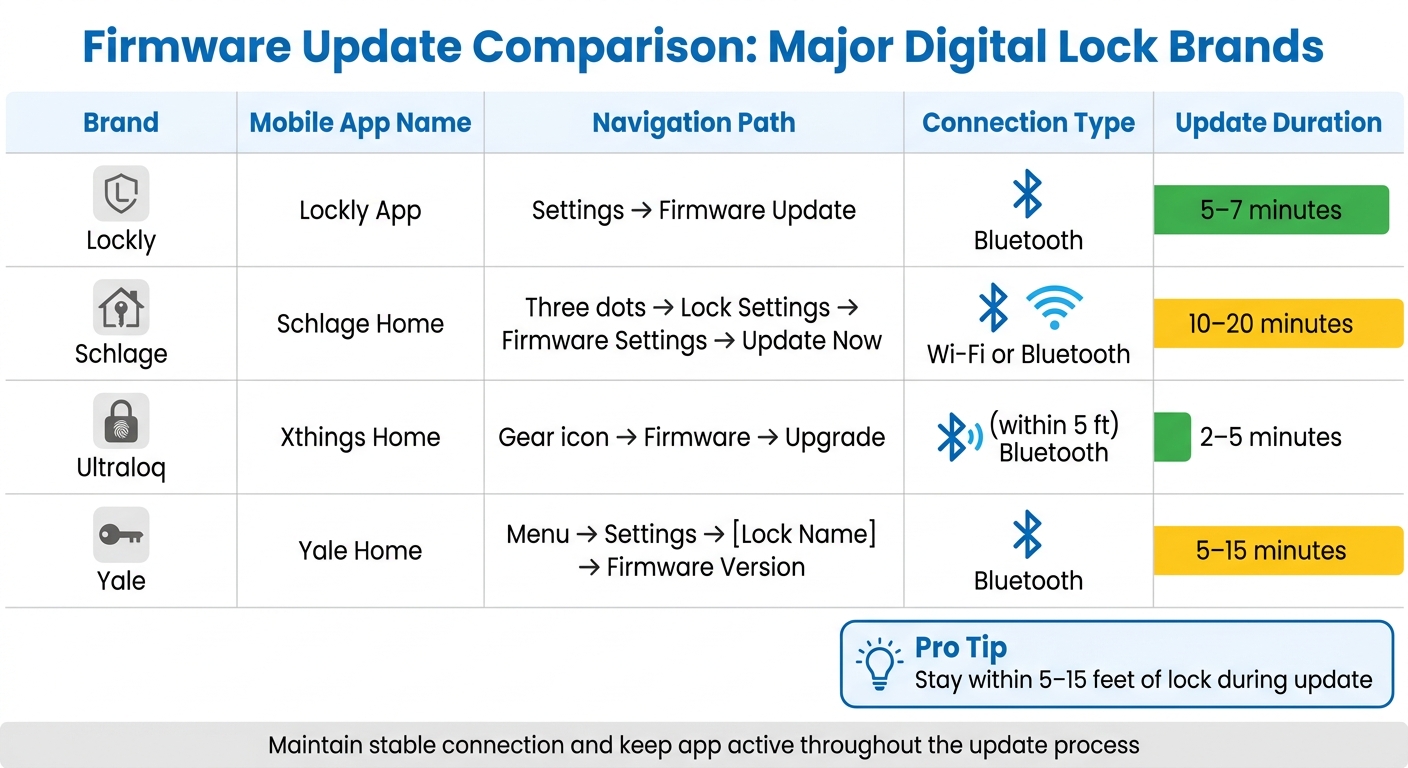
The easiest and most common way to update firmware is through the manufacturer's mobile app. To ensure a smooth update, stay within 5 to 15 feet of the lock to maintain a stable Bluetooth connection [8]. Keep your phone's app active throughout the process to avoid interruptions [9]. Depending on the connection type, updates typically take between 2 and 20 minutes [9].
| Brand | App Name | Navigation Path | Connection Type | Typical Duration |
|---|---|---|---|---|
| [Lockly](https://lockly.com/) | Lockly App | Settings > Firmware Update | Bluetooth [8] | 5–7 minutes [8] |
| [Schlage](https://www.schlage.com/en/home.html) | Schlage Home | Three dots > Lock Settings > Firmware Settings > Update Now | Wi-Fi or Bluetooth [9] | 10–20 minutes [9] |
| [Ultraloq](https://ultraloq.com/) | Xthings Home | Gear icon > Firmware > Upgrade | Bluetooth (within 5 ft) [10] | 2–5 minutes [10] |
| [Yale](https://www.yalehome.com/global/en/trusted-innovation/our-product-portfolio/smart-locks) | Yale Home | Menu > Settings > [Lock Name] > Firmware Version | Bluetooth [5] | 5–15 minutes [5] |
Once the update is complete, check the "Firmware Version" section in the app settings to confirm the version number has changed or that the update notification is no longer visible [5]. If app updates aren't working, you can switch to the manual method.
Manual Firmware Update Process
Some locks allow updates without needing a smartphone. For instance, Schlage Encode and Arrive locks can check for firmware updates by pressing the interior button rapidly five times. If the lock is connected to Wi-Fi, it will automatically download the update from the cloud [4].
For commercial systems like BoxLock, log in to control.bxlck.com, select the specific lock, and click "Update" [3]. The portal will generate a QR code, which you scan using the lock's built-in scanner while it's plugged into a power source. Keep the lock connected until it emits three beeps, signaling that the update is complete [3].
If an update fails, try restarting your phone and power cycling the lock [10]. For Ultraloq locks, recalibrate the lock's direction immediately after finishing the firmware upgrade [10].
Using Lockii for Automated Updates
For those managing multiple locks across various locations, automating firmware updates can save a lot of time and effort. Rental operators, in particular, often face the challenge of keeping dozens or even hundreds of locks up to date while ensuring constant customer access. Lockii simplifies this process by integrating with systems like IglooHome to automate updates.
Through Lockii's dashboard, you can monitor firmware statuses for all your locks in one place. The platform identifies which locks need updates and schedules them during times when the locks aren't in use. For example, it ensures that a 6:00 AM pickup customer won't encounter a lock mid-update. By aligning updates with booking schedules, Lockii minimizes disruptions and helps maintain customer satisfaction. Regular firmware updates are essential for keeping your operations secure and reliable.
Fixing Common Firmware Update Problems
Firmware updates can fail for a variety of reasons, often tied to connectivity issues or user mistakes. These hiccups require quick troubleshooting to get things back on track. One of the most frequent problems is an interrupted OTA (over-the-air) update. This can happen if your phone moves out of Bluetooth range or if you accidentally close the management app while the update is in progress [11][5]. When this occurs, the lock may get stuck in OTA mode, leading to problems with app connectivity or even basic locking and unlocking functions [11]. Signs of a failed update include the lock becoming unresponsive to the app or its physical operation becoming inconsistent. Addressing these issues promptly is key to restoring full functionality.
Steps to Recover from Failed Updates
If a firmware update fails, try these steps to recover:
- Power cycle the lock: Remove and then reinsert the batteries to restart the lock and reset it to its state before the update attempt [11][5].
- Restart your smartphone: This can help fix any Bluetooth glitches that might be interfering with the connection [5].
- Stay within Bluetooth range: Ensure your phone remains close to the lock and keep the management app open during the update process [5].
After completing these steps, check the "Firmware Version" section in your app's settings to confirm the lock's status before trying the update again.
For those managing multiple devices, such as rental operators using Lockii, failed updates across different locations can be tracked using the central dashboard. This tool helps you identify which locks need attention, so you can focus on resolving issues without visiting every site. If problems persist, revisit the pre-update checklist to ensure all conditions are met.
When to Contact Technical Support
If your lock remains stuck in OTA mode even after power cycling and restarting your phone, it’s time to reach out to the manufacturer’s technical support team [5]. Before contacting them, gather the current firmware version from the "Lock Settings" section in your app. This information will help speed up the troubleshooting process. Most manufacturers have regional support teams who can guide you through advanced recovery steps that go beyond basic fixes.
It’s worth noting that even if an update fails, guest users can still perform basic locking and unlocking functions. Firmware updates are managed exclusively through the owner’s account, ensuring operational security. Promptly resolving these issues with technical support minimizes downtime and keeps everything running smoothly.
Maintaining Security During Firmware Updates
Firmware runs at the hardware level, which makes security a top concern during updates. According to a Forrester study, more than 50% of organizations reported breaches or data compromises linked to hardware or silicon-level vulnerabilities in a single year [1]. These stats highlight why security must be prioritized during firmware updates.
Security Practices for Safe Updates
Beyond following a pre-update checklist, certain security measures are essential to maintain system integrity during firmware updates. Always download firmware directly from official manufacturer websites. Before initiating an update, confirm that the firmware image matches your specific device model. This includes reviewing release notes and ensuring the _manufacturerId_ and _fwType_ align with your lock's specifications. Installing firmware for the wrong model could permanently damage your hardware.
For rental operators using Lockii across multiple properties, the centralized dashboard simplifies monitoring update progress remotely. This tool also ensures that each lock maintains a stable connection throughout the process.
Power stability is another critical factor. Firmware updates demand more energy than regular operations, so replace batteries with new ones beforehand or use an uninterruptible power supply (UPS) for networked locks. A power outage during the update could render the device unusable. Additionally, enable secure boot or signature verification to ensure only authenticated firmware is installed.
Testing and Verifying Updates
Once the update process is secured, it’s important to verify its success. Start by checking the firmware version number in your lock's management app under "Lock Settings" or "Firmware Version" to confirm the new version has been installed. Perform manual functionality tests - lock and unlock the device both physically and via the app - and ensure features like Auto-Lock operate as expected. If your lock integrates with other devices, such as motion sensors or alarm systems, test those connections too, as updates can sometimes disrupt automation settings.
Also, verify firmware file checksums (e.g., SHA-256) both before and after installation. If managing multiple locks, consider testing the update on a less critical unit first. This approach can help identify bugs before rolling out updates across all devices.
Once you’ve confirmed the update is secure and functional, you’re ready to wrap up the process in the summary section.
Firmware Update Management Summary
Managing firmware updates securely requires careful planning and execution. Start by ensuring all connected systems are current and always back up your configurations before proceeding. To avoid interruptions, make sure power is stable - use fresh batteries or a UPS during the update process.
Most updates are completed through mobile apps via Bluetooth. Typically, you’ll need to stay within 5 to 15 feet of the lock during the update. If the update fails, try common troubleshooting steps like disconnecting other Bluetooth devices, toggling your phone’s Bluetooth, or power cycling the lock. Persistent issues? Switch to another mobile device or reach out to technical support for help.
When it comes to security, only download firmware from official manufacturer websites and verify file integrity using checksums like SHA-256. If possible, test updates on less critical locks first to identify potential issues without risking your entire system. After completing the update, confirm the firmware version has updated and test key functions - like locking and unlocking - to ensure everything works as expected.
For rental businesses managing multiple properties, Lockii simplifies the process with its centralized dashboard. This tool integrates with IglooHome digital locks, enabling remote monitoring and update tracking across all locations. By eliminating the need for on-site visits, Lockii helps minimize labor costs while maintaining consistent security standards across your properties. Sticking to these steps keeps your locks updated, secure, and fully operational.